
A favicon checker is any test that tells you whether your site's icon files exist, load, have the right size and are linked from your page, and you can run a complete one yourself with a browser and a terminal in about ten minutes. This guide gives you the six checks that matter, the exact commands, and the real output we got when we ran every one of them on our own site, so you can compare your results line by line.
There is no single button that proves a favicon is right, because "right" is several separate questions: is the tag in the page, does each file answer, is each file the size it claims, is the image square, and is the address stable. Each question has a one-line test below. When a test fails, the section tells you what the failure means and which guide shows the repair.
How to check a favicon in six steps
To check a favicon, find the icon tags in your page, request every file they name, confirm each file's type and size, look at the images at actual size, check the manifest, and then check that nothing blocks them. These are the six steps, and the rest of this guide takes them one at a time:
- Find the favicon tags in your home page source.
- Request each file and read the status code and content type.
- Check the real dimensions inside each file.
- Look at the icon at actual size.
- Check the web app manifest, if you have one.
- Check that robots.txt and redirects do not interfere.
You need only two things: a terminal with curl and the file command (both ship with most Linux and Mac systems, and Windows has curl built in), and a browser. If you would rather skip the terminal, each step has a browser version too.
Check favicon tags: find the icon links in your page source
To check favicon tags, download the page and print every line that contains icon; that list is every icon your page declares. The command is:
curl -s https://example.com/ | grep -o '<link[^>]*icon[^>]*>'
Replace example.com with your own address. The -o flag prints only the matching tag, so the result is a short list. This is what the command printed for our home page on 2026-11-26:
<link rel="icon" href="/favicon.ico" sizes="48x48"/>
<link rel="icon" href="/favicon-16.png" type="image/png" sizes="16x16"/>
<link rel="icon" href="/favicon-32.png" type="image/png" sizes="32x32"/>
<link rel="icon" href="/favicon.svg" type="image/svg+xml"/>
<link rel="apple-touch-icon" href="/apple-touch-icon.png"/>
Read your own list for three things. First, at least one rel="icon" line must exist; an empty result means your page declares no favicon at all, and the fix is in how to add a favicon in HTML. Second, every href should be a path you recognize; a path to a file that was deleted is a dead link. Third, sizes and type should match the file. A tag that says sizes="32x32" for a 16 pixel file is a mistake, and step 3 below finds it.
The browser version: open your home page, right-click, choose view page source, and search the text for icon. Use the page source, not the live inspector, because the inspector also shows tags added by scripts after the page loads, and a crawler reading the plain HTML may not see those.
If your tags are in the page but the list is shorter than you expected, compare it with the full set the free favicon maker produces from one upload. The finished set and its snippet are explained in how to make a favicon.
Check favicon files: request each one and read the status
To check favicon files, request every address from step 1 and read three values for each: the status code, the content type and the size in bytes. A healthy icon returns 200, an image content type and a size above zero. This command prints all three:
for u in favicon.ico favicon-16.png favicon-32.png apple-touch-icon.png favicon.svg; do
  curl -s -o /dev/null -w "$u %{http_code} %{content_type} %{size_download}\n" -L https://example.com/$u
done
Our results, run against our own site on 2026-11-26:
| File | Status | Content type | Bytes |
|---|---|---|---|
| favicon.ico | 200 | image/x-icon | 15086 |
| favicon-16.png | 200 | image/png | 351 |
| favicon-32.png | 200 | image/png | 631 |
| apple-touch-icon.png | 200 | image/png | 2560 |
| favicon.svg | 200 | image/svg+xml | 314 |
Now read what a failure looks like. A 404 means the file is missing or the path in your tag is wrong. A 403 means the server or a firewall refuses the request. A 200 with the type text/html is the sneaky one: your site answered with a web page, usually a custom error page, instead of an image, so a quick glance at the status alone would call it fine. A redirect chain (the -L flag follows it) that ends on a login page is the same kind of failure.
To see what a missing file looks like, we requested an icon path that does not exist on our site, /nope-favicon.ico, and the status was 404. That is the answer you want for a file that is not there, because it tells a crawler plainly that there is nothing to fetch.
The browser version: paste each icon address into the address bar. An image should open. Here is our favicon.svg opened that way:
If a file fails here, the repair depends on why. A missing file needs to be uploaded to the path in the tag. A wrongly typed file needs the right extension or server setting. If you do not have the files at all, how to make a favicon builds the set, and the PNG to ICO guide explains what goes into the ICO.
Favicon test for size: check the real dimensions inside each file
To test a favicon's size, read the dimensions stored inside the file rather than trusting its name, because a file called favicon-32.png can contain any size. Download each file and run the file command on it:
curl -s https://example.com/favicon-32.png -o favicon-32.png && file favicon-32.png
The command prints the type and the dimensions. This is what it printed for each of our files:
| File | What file reported |
|---|---|
| favicon.ico | Windows icon resource, 3 icons (the output names 16x16 and 32x32 first) |
| favicon-16.png | PNG image data, 16 x 16 |
| favicon-32.png | PNG image data, 32 x 32 |
| apple-touch-icon.png | PNG image data, 180 x 180 |
| icon-192.png | PNG image data, 192 x 192 |
| icon-512.png | PNG image data, 512 x 512 |
| icon-maskable-512.png | PNG image data, 512 x 512 |
| favicon.svg | SVG Scalable Vector Graphics image |
The file output for the ICO lists the first layers it prints in short form; we also read the ICO header directly, which lists three images of 16 by 16, 32 by 32 and 48 by 48 pixels. That three-layer layout is why the ICO is far larger in bytes than the PNGs, as the PNG to ICO guide shows byte by byte.
Compare your results with these rules:
- Square. Width and height must be equal. A 32 by 16 favicon is a mistake.
- Matches the tag. If the tag says
sizes="32x32", the file should be 32 by 32. - Useful sizes exist. A set that has only one 16 pixel file is thin. The favicon size guide lists the sizes worth shipping and why each exists.
- Google's rule. Google's documentation asks for a square favicon of at least 8 by 8 pixels and recommends one larger than 48 by 48. If your site is meant to show an icon in search, see favicon not showing in Google search.
On Windows without the file command, open the image in any viewer that shows its properties and read the width and height there. The numbers are the same.
Favicon validator for the look: view the icon at actual size
To validate how a favicon looks, view it at the size it will really be used, because a design that looks fine at 512 pixels can turn to mush at 16. No command can judge this; your eyes can, in about a minute.
Open each small file on its own, then zoom the browser back to 100 percent so the 16 and 32 pixel files appear at their true size. Ask three questions: can you tell what it is, does it hold up against both a light and a dark background, and is any part of it cut off at the edges? A favicon with thin lines, small text or a busy background usually fails the first question. Our guide on how to make a favicon covers what survives at 16 pixels, and shows a real logo that was not square being padded to a square rather than cropped.
Our favicon maker also shows every generated file at actual size before you download anything, so you can run this test on the package before the files go on your site. Here is the same test applied to the Apple touch icon, our 180 by 180 file, opened directly:
If the look fails, the fix is a simpler source image, not a different checker. A single letter or symbol on a solid colored square is the safest design, and you can regenerate the entire set from the new source in one upload with the free favicon maker.
Is my favicon working: check the manifest and the rest of the set
To check whether your favicon set is complete, read your web app manifest, if your site has one, and request every icon it lists. The manifest is a small JSON file that names the larger icons used when a site is added to a home screen, and each icon in it is another file that can be missing.
Request the manifest and read it:
curl -s https://example.com/site.webmanifest
Ours returned this on 2026-11-26, trimmed to the icon lines:
"icons": [
  { "src": "/icon-192.png", "sizes": "192x192", "type": "image/png" },
  { "src": "/icon-512.png", "sizes": "512x512", "type": "image/png" },
  { "src": "/icon-maskable-512.png", "sizes": "512x512", "type": "image/png", "purpose": "maskable" }
]
Run the file check from step 2 on each src, and the size check from step 3 on each result. Our three manifest icons are 192 x 192, 512 x 512 and 512 x 512, matching what the manifest claims. Three things to look for in yours: every src returns 200, every sizes value matches the real image, and the manifest itself is linked from your page with a rel="manifest" tag. The manifest also needs to be served with a JSON type; ours came back as application/manifest+json.
The maskable icon deserves a note. A maskable icon is drawn with extra empty margin so that a platform that applies a shape to it does not cut off your artwork. Whether a given platform applies a shape is not something we have measured, so we only check that the file exists and is the size the manifest says.
Favicon checker for crawlers: check robots.txt, redirects and caching
To check that crawlers can reach your favicon, read your robots.txt, follow your redirects and look at the caching headers. This is the check that separates "works for me" from "works for a search engine", and it is the one that most simple checkers skip.
robots.txt. Open https://example.com/robots.txt. No Disallow line may be a prefix of your home page or of any icon path. Ours blocks only /api/, /dashboard, /login and /signup:
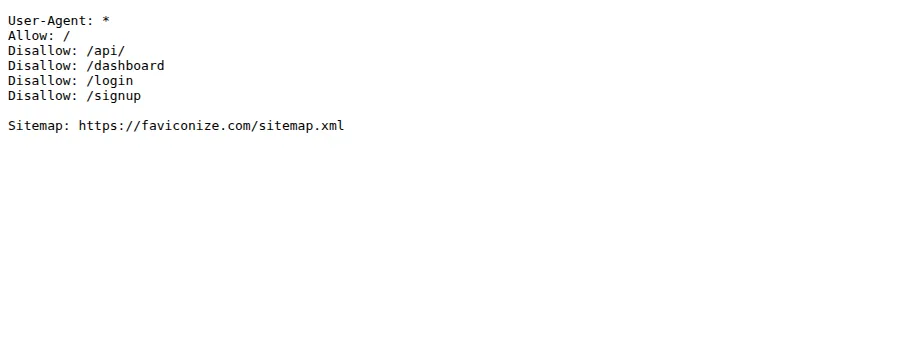
Redirects. If your site answers on both www and the bare domain, request both and look at where each one ends:
curl -sL -o /dev/null -w "%{http_code} %{url_effective}\n" http://www.example.com/
For our site both the www form and the bare form ended on https://faviconize.com/ with a 200. You want each form to land on one chosen home page with a clean 200.
Caching headers. Request the headers of an icon with curl -sI. Ours returned cache-control: public, max-age=0 and a last-modified line for the ICO. A short cache time means a changed icon is picked up quickly; a very long one means a visitor's browser may keep an old icon for a long time. Neither is wrong, but if you changed your icon and still see the old one, this is the header to read. Our favicon not showing in Google search guide goes through the Google side of this in full, including how to ask for a recrawl.
Free favicon checker versus building the set again
If your check fails on more than one step, regenerating the whole set is faster than repairing each file, and it also gives you a head snippet that matches the files. Our free favicon maker takes one PNG, JPG, WebP or SVG and returns a ZIP of icon files and a paste-ready snippet. After you upload the new files, run steps 1 to 3 again on the live site and compare the results with the tables above.
The order to follow is short. Make the set from your logo, as shown in how to make a favicon. Put the files at the root of your site. Paste the snippet into the head of your home page, using how to add a favicon in HTML if you are not sure where it goes. Then run the six checks. If you use an SVG, the SVG favicon guide lists what to add next to it.
Favicon checker results: what each failure means
A failed favicon check always points to one of a short list of causes, and the table below maps each result you can see to the likeliest fix.
| What you see | What it usually means | Where to fix it |
|---|---|---|
| No icon tag in the page source | The page declares no favicon | How to add a favicon in HTML |
| 404 for an icon | Wrong path or file not uploaded | Upload the file to the path in the tag |
| 200 with type text/html | An error page answered instead of an image | Fix the server path or rewrite rule |
| File size differs from the tag | The sizes value is wrong |
Correct the tag or regenerate the file |
| Not square | The source was a wide or tall logo | How to make a favicon |
| Only one small size | The set is thin | Favicon size guide |
| Manifest icon returns 404 | A manifest path is stale | Update the manifest |
| Icon fine, search shows a default | A crawling or waiting issue | Favicon not showing in Google search |
These are the failures we would expect from reading the rules and the formats, and each is something you can reproduce with the commands above. We have not measured how any particular browser or search engine reacts to each case, so this guide sticks to what the files and the responses show.
Favicon checker: the short answer
To use a favicon checker, find the icon tags in your page, request each file, confirm the type and the real dimensions, look at the icons at actual size, read the manifest, and check robots.txt and redirects. Six checks, two tools, ten minutes.
If every check passes, your files are in order and anything else is about timing at the search engine. If some fail, fix the one at the top of the table first, because a missing tag or a missing file explains most of the rest. When you need a clean set to start from, the free favicon maker builds it from one upload with no account, and the guides linked above explain each piece.