
A favicon is not showing in Google search when Google has not been able to find, crawl or accept the icon for your home page, and the fix is almost always one of seven things you can check in about ten minutes. Google lists its rules in public, so this guide walks through each rule in order, shows you how to test it on your own site, and tells you what to do when everything passes and the old icon still hangs around.
The short version: a favicon appearing in your browser tab proves almost nothing about Google search. The tab only needs the file to load for you. Google needs a link tag on the home page, a crawlable file, a square image in a supported format, and a hostname that is the right kind of address. Every step below can be tested from your own computer, and the results quoted from our own site were measured while writing this guide.
Why your favicon is not showing in Google search results
Your favicon is not showing in Google search results when one of Google's published favicon rules is not met, or when the rules are met and Google has simply not re-read your home page yet. Those are the only two groups of cause, and they need opposite responses: the first group needs a fix, the second needs patience and one request.
Google's own page on favicons in search results states the conditions plainly. The page says a favicon is not guaranteed to appear even when every guideline is met, so there is a third, quiet outcome too: everything is correct and Google still shows the default globe icon for a while. This guide cannot promise a date for that, and neither can anyone else. What it can do is rule out every cause that is yours to fix, so that whatever remains is waiting and not a mistake.
Here is the order we use, from the checks that fail most often to the ones that fail rarely:
- The home page has a
linktag that names the icon. - The home page and the icon file are both reachable by Google, with no block in robots.txt.
- The icon is a square image of a size and format Google accepts.
- The address is a domain or subdomain home page, not a folder.
- The icon file address has stayed the same.
- The icon is a fair picture of your site and nothing Google would replace.
- Google has had time to crawl the home page again after the change.
Each of the next sections takes one of these and shows how to test it.
Favicon link tag: how Google finds the icon on your home page
Google finds your favicon through a link tag in the head of your home page, so a favicon not showing in Google search often means that tag is missing, wrong, or only present on inner pages. The tag looks like this:
<link rel="icon" href="/favicon.ico">
Google's documentation names the values of rel it reads: icon, the older shortcut icon, apple-touch-icon and apple-touch-icon-precomposed. The href can be a relative path such as /favicon.ico or a full address, and it does not even have to be on your own site, so an icon on a CDN is allowed. Our guide on how to add a favicon in HTML shows the full set of tags and where each one goes.
Two details cause most of the trouble here.
The tag must be on the home page. Google reads the favicon from the home page of the hostname. A tag that exists on a blog post or a product page but not on the home page does not help. If your home page is built from a different template than your inner pages, check that template specifically.
The tag must be in the HTML Google receives. Open your home page, view the page source (not the inspected elements, which can show tags a script added later) and search for rel="icon". Our own home page returns these tags in its source, measured on 2026-11-26:
<link rel="icon" href="/favicon.ico" sizes="48x48"/>
<link rel="icon" href="/favicon-16.png" type="image/png" sizes="16x16"/>
<link rel="icon" href="/favicon-32.png" type="image/png" sizes="32x32"/>
<link rel="icon" href="/favicon.svg" type="image/svg+xml"/>
<link rel="apple-touch-icon" href="/apple-touch-icon.png"/>
You can run the same check without a browser. This command downloads your home page and prints every icon tag, and an empty result means the tag is not in the HTML at all:
curl -s https://example.com/ | grep -o '<link[^>]*icon[^>]*>'
If you have no icon tag at all, the file /favicon.ico at the root of your site is a common default that many tools look for, but Google's documentation asks for the tag, so add it. If you do not yet have the files, how to make a favicon takes you from a logo to a finished set, and our free favicon maker gives you the paste-ready tags with the ZIP.
Favicon blocked by robots.txt: let Google crawl the icon file
A favicon blocked by robots.txt will not show in Google search, because Google says both your home page and the icon file must be crawlable, and that the home page and any redirects it follows must not be blocked "by a robots.txt file or by other means". The icon is fetched by a different Google crawler than the page, named Googlebot-Image in the documentation, so a rule that only affects images can break the icon while the page stays fine.
Open https://your-site/robots.txt and read it line by line. You are looking for any Disallow line that would cover the home page, the folder the icon lives in, or the icon file itself. Common causes are a broad Disallow: /assets/, a rule against /images/ or /static/, or a rule against a file type. Here is our own robots.txt, which blocks only the API and the account pages:
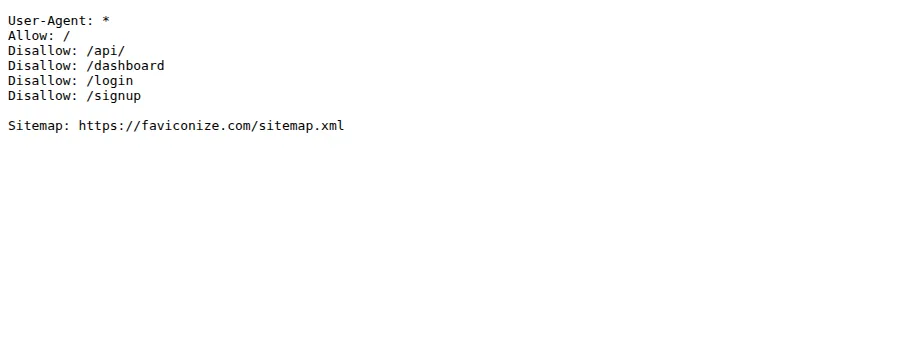
The check for your file is simple: none of the Disallow lines may be a prefix of the icon's address. Our icon files sit at the site root, for example /favicon.ico, and the only disallowed paths are /api/, /dashboard, /login and /signup, so none of them matches. If your icon sits at /static/icons/favicon.png and robots.txt says Disallow: /static/, move the icon or remove the rule.
Blocking can also happen outside robots.txt. The documentation says "by other means", and the usual ones are a login wall, a firewall or bot-protection rule that returns an error to crawlers, or a redirect that sends the icon request to a page that needs a login. The easy test is to request the icon with no cookies and look at the status code:
curl -s -o /dev/null -w "%{http_code} %{content_type} %{size_download}\n" https://example.com/favicon.ico
You want 200, an image content type and a size above zero. Our own icon returned 200 image/x-icon 15086 when we ran it. Anything else, such as a 403, a 404 or text/html for an image file, is a cause you can fix.
Favicon requirements for Google: square, supported format, large enough
Google's favicon requirements are a square image with a 1:1 aspect ratio, at least 8 by 8 pixels, in one of these formats: BMP, GIF, ICO, PNG, JPEG, PPM or TIFF. Google also recommends a favicon larger than 48 by 48 pixels so it looks good on different surfaces.
Read that list for what is missing. SVG is not on it. An SVG favicon is fine to include for browsers, but if it is the only icon you provide, the Google rules do not list it as a format, so also provide a PNG or ICO. Our SVG favicon guide explains the test results behind that advice and shows how to ship an SVG next to the files that cover the gap.
Three practical points follow from the rules.
Square matters. A wide logo squeezed into a favicon gets stretched or cropped by some tools. Our favicon maker scales a non-square source to fit and pads the rest with transparency, and it tells you when it did, so nothing is cut off. The walk-through is in how to make a favicon, including a real 1024 by 256 logo.
Bigger than the minimum is better. The 8 pixel minimum is a floor, not a target. The recommendation above 48 pixels is why a 16 pixel file on its own is a thin choice. An ICO file made with three layers at 16, 32 and 48 pixels covers the common case, and our PNG to ICO guide shows exactly what is inside one. Our own favicon.ico has the 16, 32 and 48 layers, which we confirmed by reading its header: three images, 16 by 16, 32 by 32 and 48 by 48.
The format is judged by the file, not the name. A PNG renamed to .ico can still be a valid image, but a file that is really HTML, such as an error page served with a 200, is not an image at all. The content type check in the previous section catches it. Our favicon size guide lists the sizes worth shipping and what each one is for.
Favicon on a subdomain or subfolder: which home page counts
Google shows one favicon per hostname, so a favicon on a subfolder such as example.com/blog cannot be set separately from the one on example.com. The documentation gives three examples: https://example.com is supported as a domain-level home page, https://news.example.com is supported as a subdomain-level home page, and https://example.com/news is not supported as a subdirectory-level home page.
In practice, that has two consequences.
If you run a blog in a subfolder and gave it its own icon, Google will use the icon of the home page of the hostname, so that blog's own icon is never picked up for the folder. If you want a different icon for the blog, it needs its own subdomain, with its own home page and its own tag.
If your site answers on both www and the bare domain, those are different hostnames in the documentation's wording, which defines a site by the hostname. Make one the main address and redirect the other to it. Google's page says it follows redirects from the home page to the page where the favicon is specified, so a redirect is fine as long as it lands on a page that has the tag and is not blocked. We checked ours: the www address and the bare address both end on https://faviconize.com/ with a 200.
Test it with the same command, following redirects:
curl -sL -o /dev/null -w "%{http_code} %{url_effective}\n" http://www.example.com/
You want the final address to be your chosen home page and the status to be 200. A chain that ends on an error, or on a login page, breaks the favicon for that hostname.
Favicon URL stability: do not rename the file
The favicon URL must be stable, which means a favicon not showing in Google search can come from changing its address often. Google's page says "don't change the URL frequently". Every move to a new path restarts the process of Google finding and accepting the icon.
This is where build tools bite. Some frameworks add a hash to every asset name, so favicon.ico becomes favicon.3f9a2c.ico and changes on every deploy. That is helpful for caching, but it means the icon address changes whenever the build does. The safer pattern is a fixed path such as /favicon.ico for the file Google reads, with any hashed copies kept only for other uses.
When you do need to change the icon itself, replace the file at the same address. If you must change the address, change it once, keep the old address returning the old icon until you are sure, and avoid doing it again for a good while. Adding a query string such as ?v=2 is also a change of the address, so use it once when you change the icon and do not tie it to every deploy.
Favicon content: what Google will not show
Google will not show a favicon it considers inappropriate, and its documentation names pornography and hate symbols as examples. When that kind of imagery is found in the icon, Google replaces it with a default icon.
That rule rarely affects a normal business site, but the other half of the sentence matters more: the icon should be "visually representative of your website's brand". A favicon that looks nothing like the rest of your site, or that you took from an unrelated source, is a poor candidate even where it passes every technical test. Use your actual logo mark, simplified. Our guide on how to make a favicon covers what survives at 16 pixels: one letter, one symbol, solid colors, no thin lines.
Favicon not updating in Google: how long to wait and what to request
If your favicon is not updating in Google, the likeliest reason is that Google has not crawled your home page since you changed it. The documentation says crawling "can take anywhere from several days to several weeks, depending on how often our systems determine content needs to be refreshed". That is the only timing Google gives, and no tool can shorten it with certainty, so be wary of any page that quotes a precise number of hours.
You can ask for a recrawl. The documentation says you can request indexing of your home page with the URL Inspection tool in Search Console. The steps are:
- Open Search Console and choose the property that matches your hostname.
- Paste your home page address into the inspection bar at the top.
- Read the result. If it says the page is available, choose the option to request indexing.
- Wait for the confirmation. There is a daily limit on requests, so do not repeat it.
Requesting indexing asks Google to re-read the page that carries the tag. It does not edit the favicon in search results by itself, and it does not guarantee the timing, but it removes the case where Google would simply not return to your home page for a while.
While you wait, separate two different caches in your head. The icon in your own browser tab is stored by your browser, so a stale tab icon is a different problem from a stale icon in Google. Clearing your browser cache fixes only the tab. The guide on how to add a favicon in HTML has the steps for the tab, and its last section explains why a version string is fine once and wrong every deploy.
Favicon checklist: a complete test you can run today
You can test every rule in this guide in under ten minutes with a browser and one terminal window. Here is the whole checklist in the order that finds the cause fastest:
- Tag present. Run the
curlandgrepcommand on your home page. You need at least onerel="icon"line. - Icon reachable. Request the
hreffrom that tag. You need200, an image content type and a size above zero. - Not blocked. Read robots.txt. No
Disallowline may cover the home page or the icon path. - Format and shape. The file must be square, at least 8 by 8 pixels (more than 48 is recommended) and a format on the list above. If your only icon is an SVG, add a PNG or ICO.
- Right hostname. Your home page is a domain or subdomain root, and the other form (
wwwor bare) redirects to it. - Stable address. The icon path has not changed on every deploy.
- Time and a request. If everything above passes, request indexing for the home page and wait.
If item 4 is where you fail, regenerating the set is quicker than repairing it. The free favicon maker accepts a PNG, JPG, WebP or SVG, and its page is shown here:
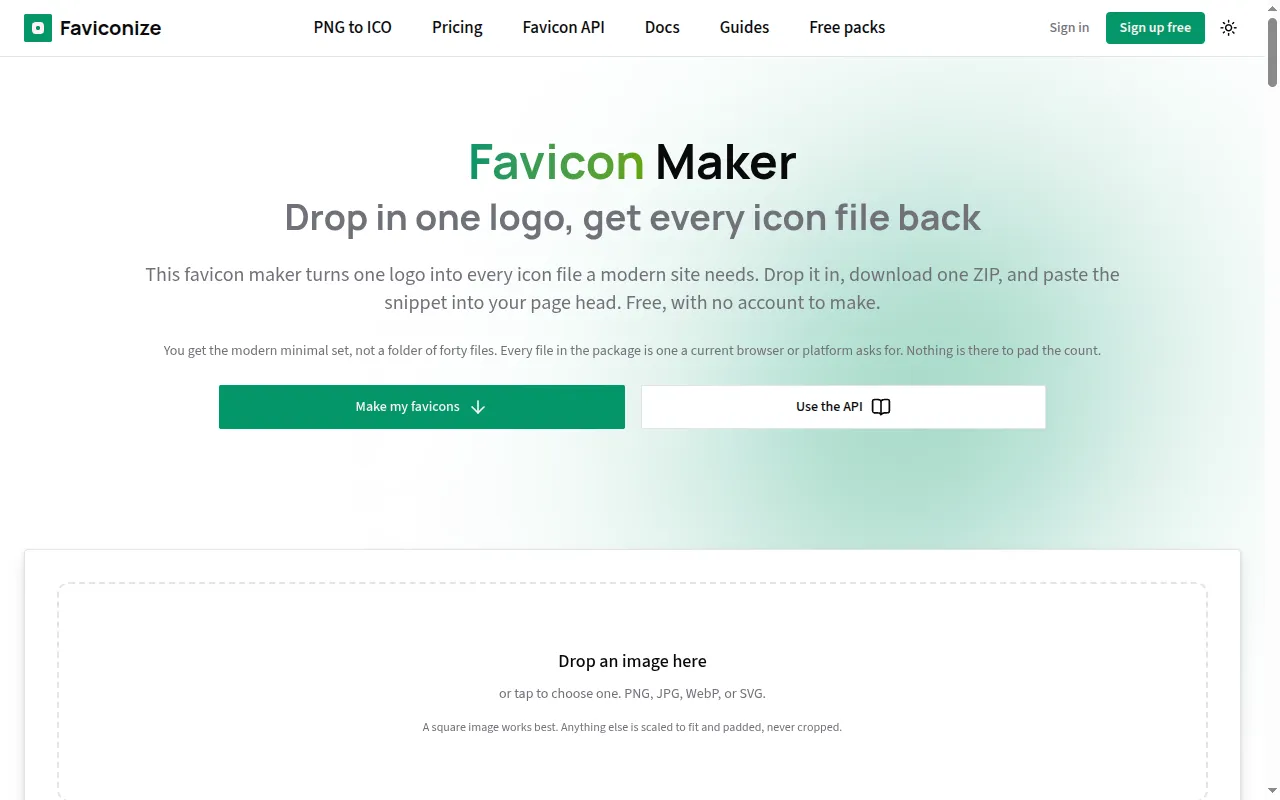
Upload one logo, download the ZIP, copy the snippet into the head of your home page and run checks 1 and 2 again on the live site. The steps are the same as in how to make a favicon, and the finished files and their sizes are explained in the favicon size guide.
Why is my favicon not showing: other causes to rule out
If your favicon is not showing in Google search after all seven checks pass, look at three more causes before you conclude it is only waiting.
The home page changed after you tested. A template update, a plugin or a redeploy can remove the tag from the home page while inner pages keep it. Run the curl check again on the live address, not on a staging copy.
A different icon is declared first. When a page lists several icon tags, they all describe the same site. Make sure none of them points at a broken file. A single dead link among good ones is easy to miss, so request every href in the list, not just the first.
The site is new. A new site that Google has just discovered has few signals, and the favicon is one of the last things to settle. Submit the sitemap, request indexing for the home page, and keep the icon address fixed. The first weeks of a site are quiet for many reasons, and the favicon is rarely the one that matters.
None of these needs a tool beyond what is described above, and none of them needs a rule that Google has not already published. If you want to know more about what a favicon is for in the first place, our what is a favicon guide explains the whole set from the ground up.
Favicon not showing in Google search: the short answer
A favicon is not showing in Google search because the home page lacks an icon tag, the icon or the page is blocked from crawling, the file is not a square supported image, the address is a folder instead of a hostname, the icon address keeps changing, or Google has not recrawled yet. Check them in that order.
Fix what you can fix: add the tag to the home page, remove the robots.txt rule, replace the icon with a square PNG or ICO that is larger than 48 pixels, and keep the path stable. Then request indexing for the home page in Search Console once and wait, because Google says a recrawl can take from several days to several weeks. If you need new files first, the free favicon maker builds the whole set from one upload.
Source: Google Search Central, Define a favicon to show in search results (page last updated 2026-10-27), which is where every rule quoted above comes from.