
You make a favicon by choosing one simple square image, checking that it still reads at 16 pixels, turning it into the full set of icon files, and pasting the matching tags into your site. The design decision is the hard part. The file production is mechanical, and a favicon maker does it from one upload.
This guide covers both halves: what to draw so the icon survives a tiny tab, and how to make a favicon from it, with screenshots from our own free tool and the real file sizes it produced for a test logo. If you only want to know what a favicon is, start with what a favicon is and come back.
How to make a favicon in five steps
To make a favicon, pick a square source image, simplify it for small sizes, run it through a favicon maker to produce every file, upload the files to the root of your site, and paste the head snippet into your pages. Here is each step in order:
- Pick one square source. A square PNG, JPG or WebP of 512 by 512 pixels or larger works, and so does an SVG with a
viewBox. - Simplify it. Remove thin lines and small text, because they are the first things lost at 16 pixels.
- Generate the set. One upload gives you the layered
favicon.ico, two standalone PNGs, a touch icon, two app icons, a maskable icon and a manifest. - Upload the files to the top level of your domain, so
/favicon.icoloads. - Paste the tags into the
headof every page, then check the result.
The rest of this guide expands each step and shows what the output looks like.
Favicon design: what to put in a 16 pixel icon
The best favicon design is one bold shape or one letter on a solid background, because a favicon is often drawn at 16 by 16 pixels, which is 256 pixels in total. A full logo with a wordmark, a tagline and a fine illustration cannot survive that, so you do not shrink the logo, you pick the part of it that carries your identity.
Letter, symbol or wordmark as your favicon
A single letter or a single symbol is the safest favicon design because it keeps its shape when shrunk. A wordmark is the riskiest, since the letters become a smear of pixels. When your logo is a long name, use its first letter or its symbol on a square, and keep the full logo for your header.
Three quick rules help every time:
- Use few shapes. Two or three solid shapes is plenty.
- Make the contrast high. A white letter on a dark square stays readable where a gray letter on a light gray square does not.
- Leave a little padding. Artwork that touches the edge looks cramped once the browser places it in a tab.
Favicon colors and transparent backgrounds
A favicon can have a transparent background, and our tool keeps transparency instead of filling it with a color. That matters because browser tabs and bookmark bars come in light and dark themes, so a transparent icon sits on whatever color the surface has. The preview in the tool has an Alpha, a Light and a Dark backdrop switch so you can see how the same icon sits on each before you download anything.
If your mark is dark on transparent, check it on the Dark backdrop. If it is light on transparent, check it on the Light one. A solid rounded square behind the artwork, as in our test logo below, avoids the problem entirely.
How to make a favicon from a logo that is not square
To make a favicon from a logo that is not square, either crop it yourself to a square piece such as the symbol, or let the tool pad it into a square with transparency. Every icon slot is square, so a wide logo has to become square one way or the other.
We tested the second route with a wide 4 to 1 wordmark. The tool scaled it to fit, padded the rest with transparency, and said so in plain words:
The source is 1024x256, which is not square. It was scaled to fit and padded with transparency so nothing was cropped.
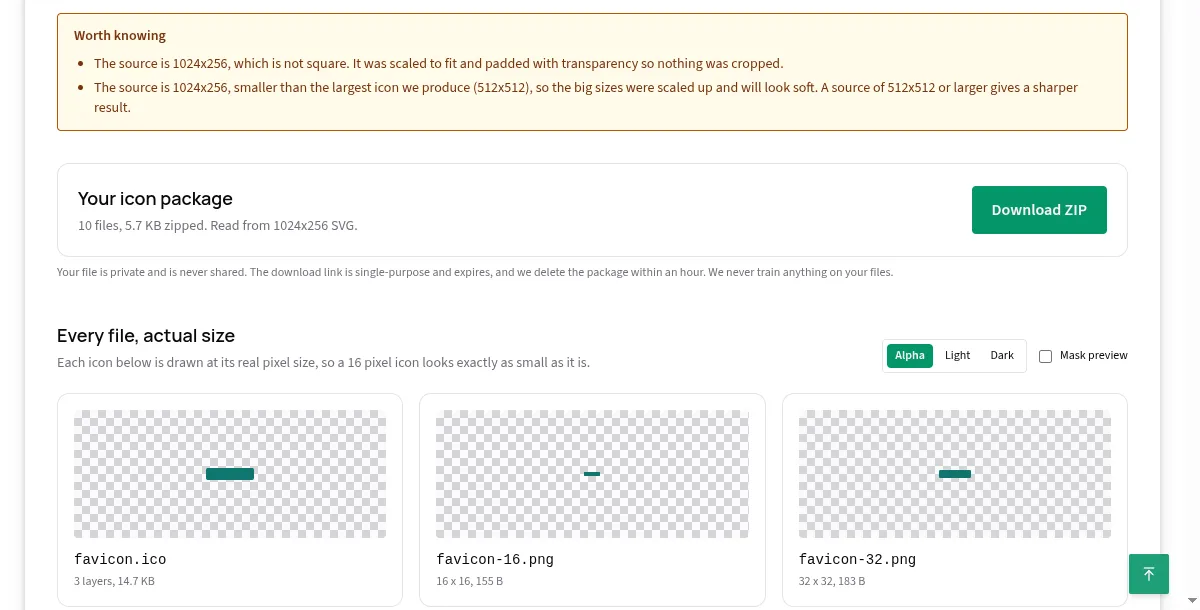
Look at the actual-size previews in that screenshot. The padded wordmark becomes a thin bar at 16 pixels, which is exactly why a wide logo is a poor favicon source. The tool does what it says, but the better fix is yours: crop to the symbol or the first letter and upload that. The favicon size guide explains why every size is square in more detail.
Make a favicon with our free favicon maker, step by step
The free favicon maker on our home page takes one upload and returns a ZIP of every file plus a paste-ready snippet, with no account. It accepts PNG, JPG, WebP and SVG. Here is the run we did for this guide, using a simple test logo: a white letter F on a teal rounded square, drawn as an SVG.
Step 1: upload your logo to the favicon maker
Drop your image on the box at the top of the favicon maker, or tap the box to choose a file. A square image works best, and anything else is scaled to fit and padded, never cropped. Our upload was a 512 by 512 SVG, and the tool read it at 1,024 by 1,024 pixels.
Step 2: set the manifest details if you need them
Under the upload box are four optional fields: an app name, a short name, a theme color and a background color. They fill in the web app manifest and the theme color tag. The defaults when we ran it were the name "My App" for both names, a theme color of #1e5ac8 and a background color of #ffffff. The background color also fills the margin on the maskable icon, so choose it to match your brand if you plan to use the app icons.
Step 3: check the package and download the ZIP
Once the upload finishes, the tool shows an icon package card with a Download ZIP button. For our test logo it read "10 files, 16.3 KB zipped. Read from 1024x1024 SVG."
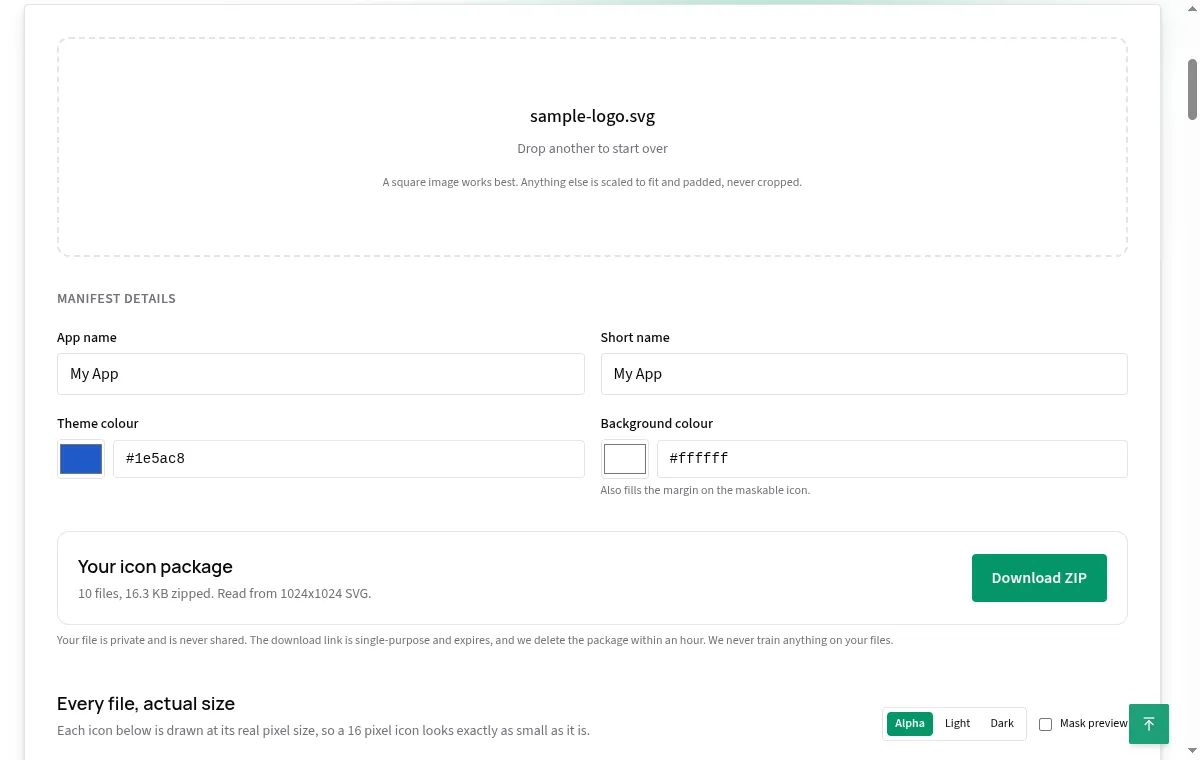
Your file is private and is never shared. The download link is single-purpose and expires, and the package is deleted within an hour.
Step 4: look at every file at its actual size
Below the package card is a section called Every file, actual size. Each icon is drawn at its true pixel size, so a 16 pixel icon looks exactly as small as it will in a tab. This is the single most useful part of making a favicon, because it shows you the problem before your visitors do.
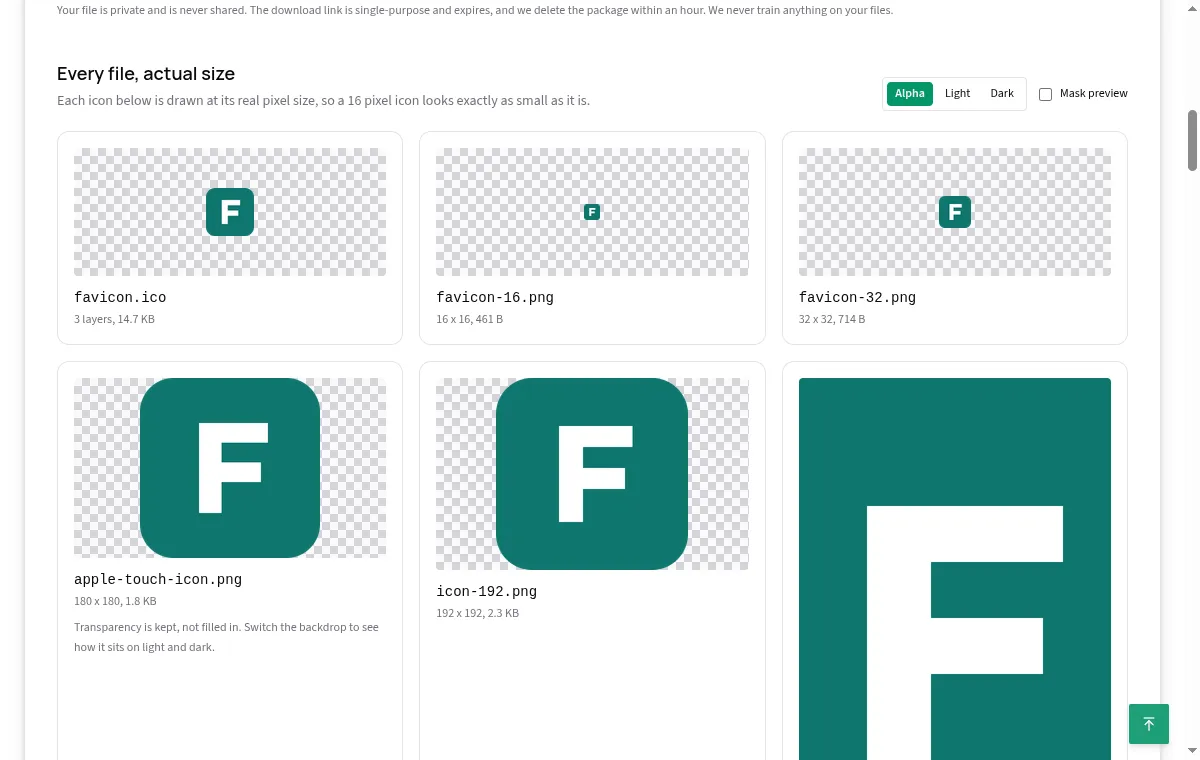
Switch between the Alpha, Light and Dark backdrops, and tick Mask preview to see how the maskable icon sits inside a cropped shape. If the 16 pixel version is muddy, go back to your source and simplify it, then upload again.
Step 5: copy the head snippet
At the bottom of the results is a section called Paste this into your head, with a Copy button.
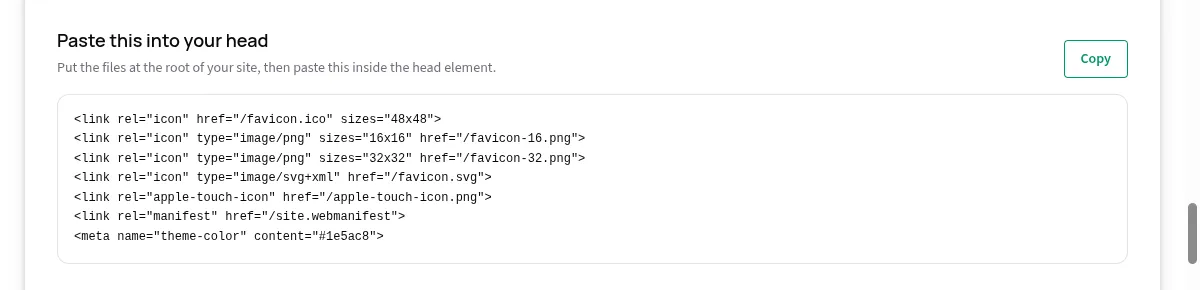
The snippet and the filenames in the ZIP match, so there is nothing to edit if you upload the files to the root of your site.
The favicon files you get, with real sizes
When you make a favicon with our tool you get ten files in one ZIP, and the byte counts below are the real measurements for the teal F test logo. They are not typical numbers for every logo, because compression depends on the artwork, but they show the proportions.
| File | Dimensions | Bytes | What it is for |
|---|---|---|---|
favicon.ico |
16, 32 and 48 (3 layers) | 15,086 | The root fallback and a link rel="icon" entry |
favicon-16.png |
16 x 16 | 461 | Tab and bookmark size |
favicon-32.png |
32 x 32 | 714 | Sharper tab size |
apple-touch-icon.png |
180 x 180 | 1,818 | The home screen shortcut icon |
icon-192.png |
192 x 192 | 2,388 | Manifest app icon |
icon-512.png |
512 x 512 | 4,632 | Manifest app icon, large |
icon-maskable-512.png |
512 x 512 | 4,245 | Manifest icon with a safe margin |
favicon.svg |
vector | 214 | Your original SVG, passed through unchanged |
site.webmanifest |
text | 477 | Names, colors and the icon list |
head-snippet.html |
text | 405 | The tags to paste |
The favicon.svg line only appears when your source is an SVG, and it is a byte for byte copy of the file you uploaded. If you started from a PNG, you get the PNG set and the ICO and no SVG. The PNG to ICO guide explains why the ICO is so much larger than the PNGs, and the SVG favicon guide covers what an SVG source changes.
How to make a favicon.ico file
You make a favicon.ico file by packing several sizes into one container, and our tool does that for you with 16, 32 and 48 pixel layers. The result is the classic file you keep at the root of your domain as the fallback.
If you only need the ICO and have a PNG, our PNG to ICO converter gives you that file from a PNG upload. If you are curious how the container is built, the PNG to ICO guide walks through the header and the three layers.
How to check a favicon before you upload it
You check a favicon before uploading by looking at the 16 pixel version at its real size, on both a light and a dark backdrop, and by reading the manifest once. Five checks cover it:
- Does the 16 pixel icon still read as your brand? If you cannot tell what it is from arm's length, simplify the source.
- Does it work on a dark backdrop and a light one? Use the backdrop switch in the preview.
- Is the maskable icon safe? Tick Mask preview and make sure nothing important is cut by the mask.
- Do the names in the manifest look right? Change "My App" to your own name before you ship it.
- Is the theme color what you meant? The snippet's
theme-colortag takes its value from the field you set.
How to add the favicon to your site
You add a favicon to your site by uploading the files to the root of the domain and pasting the head snippet into every page. The snippet our tool produced looks like this, and the paths begin with a slash so they work on every page, not only the home page:
<link rel="icon" href="/favicon.ico" sizes="48x48">
<link rel="icon" type="image/png" sizes="16x16" href="/favicon-16.png">
<link rel="icon" type="image/png" sizes="32x32" href="/favicon-32.png">
<link rel="icon" type="image/svg+xml" href="/favicon.svg">
<link rel="apple-touch-icon" href="/apple-touch-icon.png">
<link rel="manifest" href="/site.webmanifest">
<meta name="theme-color" content="#1e5ac8">
Where exactly these tags go, how to serve them from a subfolder and what to do when the old icon keeps showing are all covered in how to add a favicon to HTML. If you make favicons as part of a deploy, the favicon API guide shows how to get the same package from a script.
How to make a favicon for Google search results
To make a favicon that Google can show in search results, follow Google Search Central's favicon guidelines: a square image of at least 8 by 8 pixels, ideally larger than 48 by 48, in a supported format, at a stable URL that Google can crawl. Google's documentation lists the supported formats as BMP, GIF, ICO, PNG, JPEG, PPM and TIFF.
A few other points from the same page are worth knowing before you spend time on the design:
- One favicon per hostname.
example.comandnews.example.comcan differ, but a subfolder of a site shares the favicon of its hostname. - The home page is what counts. The link tag must be on the home page of the hostname, which Google must be able to crawl.
- The file must be crawlable too. Do not block the favicon URL in
robots.txt. - A stable URL. Google asks you not to change the favicon URL frequently.
- No guarantee. Google states that meeting every guideline does not guarantee a favicon in results.
The favicon in search results is a separate question from the one in the tab. Because SVG is not on Google's list of supported formats, keep the PNG and ICO files in your set even when you also publish an SVG. The what is a favicon guide has more on favicons in search.
Common mistakes when you make a favicon
The common mistakes when you make a favicon all come from starting with the wrong source or skipping the small-size check:
- Starting from the full logo. Use a symbol or a letter instead.
- Uploading a tiny image. A source under 512 by 512 pixels has to be enlarged for the big icons, and the tool warns you when the result will look soft.
- Using a wide image. It gets padded into a thin bar. Crop to a square first.
- Skipping the actual-size preview. This is where muddy small sizes show up.
- Leaving the default names. The manifest ships "My App" unless you change it.
- Pasting the tags without uploading the files. The snippet only works when the files sit where it says.
- Forgetting transparent backgrounds on a dark tab. A dark mark on transparency can vanish, so check the Dark backdrop.
The short answer
How to make a favicon: choose a simple square source, such as a bold letter or symbol on a solid background, check that it reads at 16 pixels, and run it through a favicon maker that produces the whole set. Upload the files to the root of your site and paste the head snippet into every page. Our free favicon maker does the production step from one upload with no account, shows every icon at its real size, and hands you the snippet. Then follow how to add a favicon to HTML to put it live.